

Quick Start
This guide will walk you through everything you need to define a minimal step, set up your Motia project, and run the Motia dev server – all in one go, using pnpm for package management.
Setup your project: Create a New Project Folder
Let's create a new Motia project in a dedicated folder. This is the recommended approach for keeping your projects organized.
Use npx to run the project creation command directly:
- This will:
- Download and run the Motia CLI project creation tool
- Create a new project directory named
<your-project-name>. - Set up a basic Motia project structure inside the new folder.
- Install necessary dependencies using pnpm within the project folder.
- Add a
devscript to yourpackage.json. - Include example steps to get you started.
Choosing a Project Name: Replace <your-project-name> with your desired project folder name.
Alternative Templates: To see other templates, run: npx motia templates (or motia templates if you installed globally).
You should see a new folder created with the following files inside:
Minimal Step Example
The initial project comes with sample steps, but in this step we're going to walk you through on creating a new one
-
Create a new file named
hello-world.step.js(orhello-world.step.tsfor TypeScript) inside thestepsfolder.hello-world.step.js -
Paste the following code into your
hello-world.step.jsfile:This minimal API step creates a GET endpoint on
/hello-worldthat returns a JSON
Start Motia Development Server & Workbench
Now, let's start Motia and see your workflow in action!
-
Open your terminal in your Motia project's root directory (where your
package.jsonfile is located). -
Run the development server command: Use the
devscript that was set up in yourpackage.json:npm run devMotia will:
- Scan your
stepsfolder for step definition files (.step.ts,.step.js,.step.py,.step.rb). - Register your Steps with the Motia runtime.
- Launch a development server and the Motia Workbench UI (typically at
http://localhost:3000).
Changing the Port: To run the Workbench on a different port, use the
--portoption:pnpm run dev --port 3001 - Scan your
View your Flow in the Workbench
-
Open your browser and navigate to the Motia Workbench. By default, it's running at:
http://localhost:3000orhttp://127.0.0.1:3000. -
Locate your Flow in the Sidebar: On the left sidebar of the Workbench UI, you should see a list of Flows.
- For the default template: You'll find a flow named "default".
- For the
hello-world.step.jsexample: You'll find a flow named "HelloWorld".
-
Select your Flow: Click on the flow name in the sidebar.
-
Observe the Visual Flow: You should now see a visual representation of your flow in the main panel. This is the Motia Workbench visualizing the steps and event flow within your application!
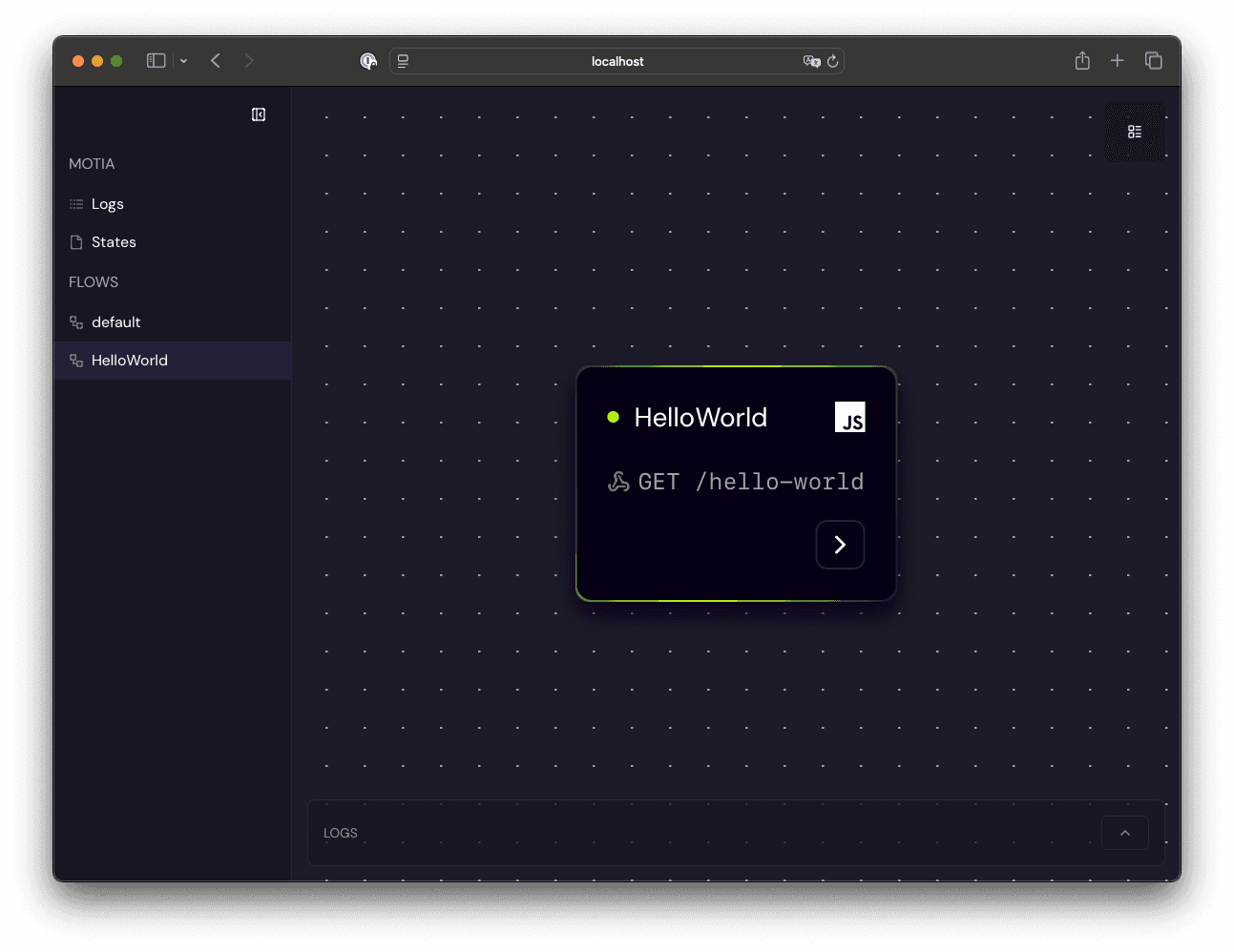
You can click and drag the nodes in the visual editor to rearrange them for better clarity. Explore the UI to familiarize yourself with the Workbench!
Test your step
Now you created the step hello-world.js, which creates a GET /hello-world endpoint, you can test by either opening http://localhost:3000/hello-world or
This is a really simple example where you can have your first step running.
Understanding a flow with events
Now you already created an API Steps, let's check the flow that's already in the project, click on default flow on Workbench sidebar on the left. (Or navigate to http://localhost:3000/flow/default)
You should see the page below
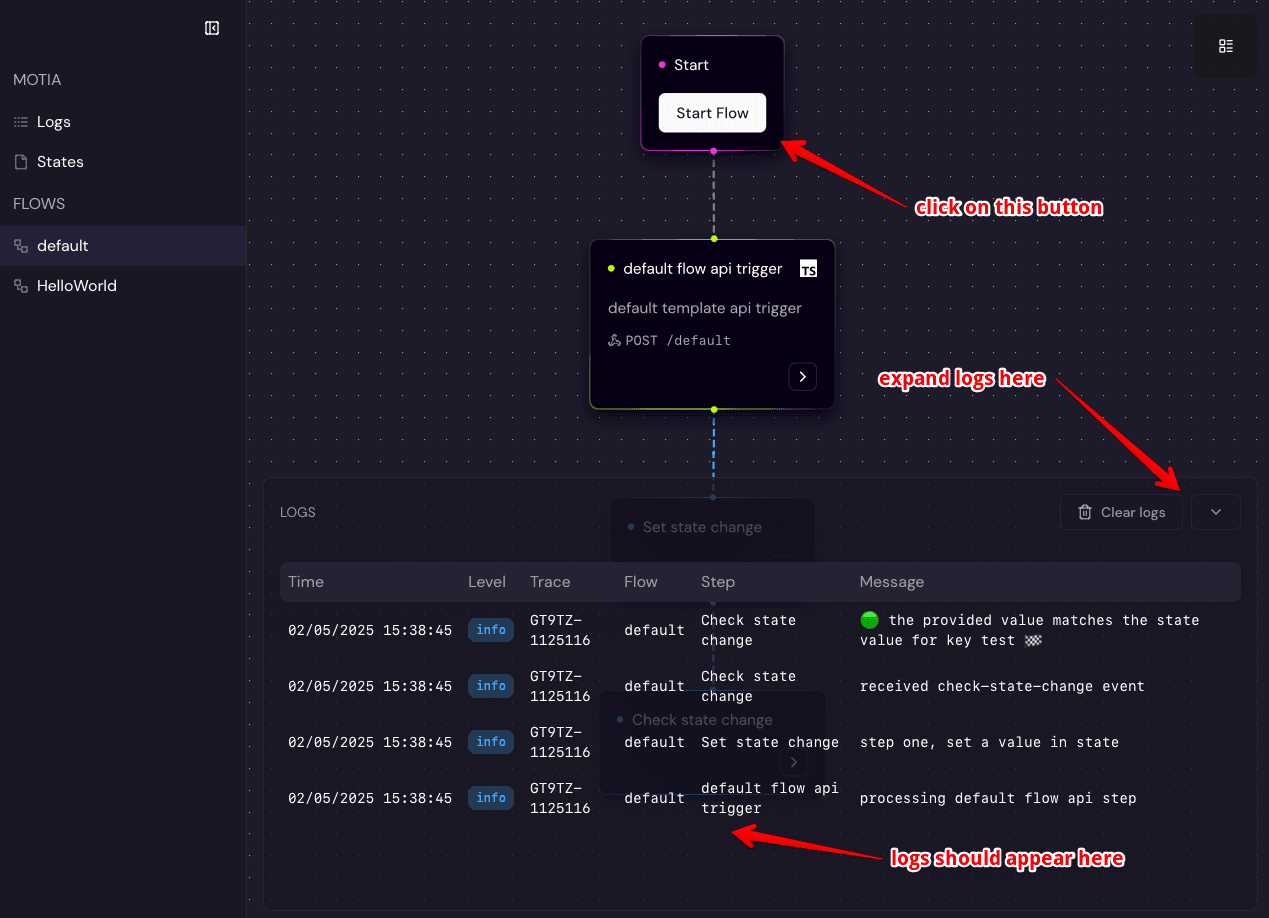
This flow is a little bit more advanced, it has Noop steps (which we are going to talk about later), API steps, and Event steps.
Event steps are code that can take some time to finish and can have errors (like LLM calls which are non-deterministic), in case they fail, they can rerun later.
In the flow represented by the image above you should see a node with a button to start it, go ahead an click it and check the logs that are generated.
Now let's dive deep on the flow you already executed. Let's jump in to Core concepts
Welcome to Motia
Motia is an all-in-one framework for modern backend systems. Out of the box support for API endpoints, background jobs, scheduled tasks and agentic workflow orchestration through a unified runtime. Thanks to its event driven architecture you can run tasks in parallel, stream data to clients, or allow for seamless orchestration of flows. What used to take 5 frameworks to build now comes out of the box with Motia.
Build Your First Motia App
Build your first multi-language Motia app in minutes. This guide walks you through creating, running, and understanding a Motia app using JavaScript, TypeScript, and Python.